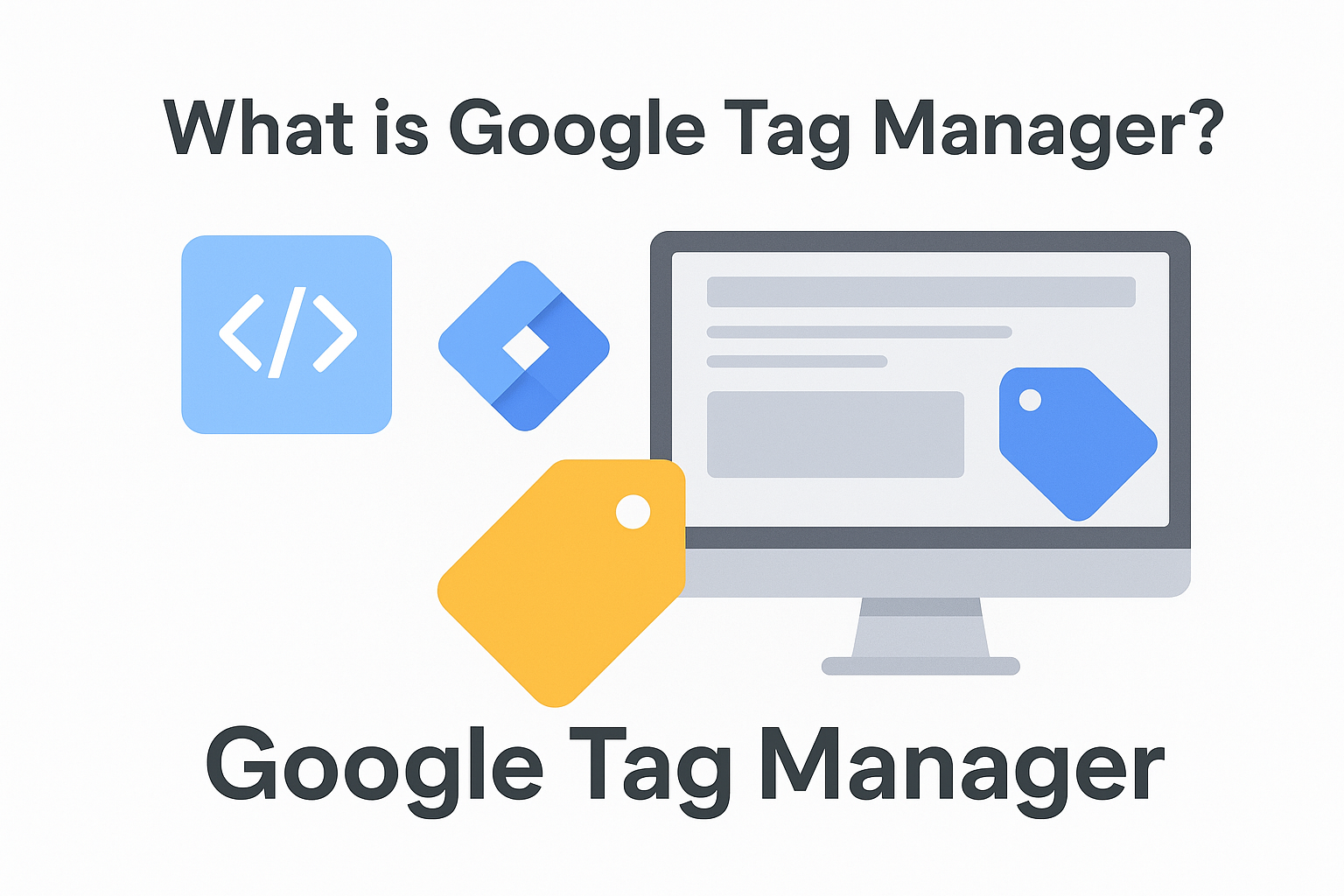
In the world of digital marketing and website analytics, Google Tag Manager (GTM) has become an essential tool for marketers, developers, and business owners alike. It simplifies how you manage tracking codes (tags) on your website—without needing to edit your site’s code constantly.
1. What is Google Tag Manager (GTM)?
Google Tag Manager is a free tool by Google that allows you to manage and deploy marketing tags (snippets of code or tracking pixels) on your website or mobile app from a single dashboard.
Instead of manually adding codes for tools like Google Analytics, Facebook Pixel, or Hotjar, you can use GTM to insert and control them easily.
For example, if you want to track form submissions or button clicks, you can set that up in GTM — no developer needed every time.
2. How Does Google Tag Manager Work?
GTM works through three main components:
- Tags: These are snippets of code that collect and send data to tools like Google Analytics, Google Ads, or other third-party platforms.
- Triggers: Triggers define when and where a tag should fire (e.g., on page load, link click, form submission).
- Variables: Variables are pieces of information that GTM uses to make decisions about when or how a tag should fire (e.g., page URL, click text).
When a visitor interacts with your site, GTM checks your triggers and fires the appropriate tags — all managed from a single interface.
3. Benefits of Using Google Tag Manager
Here’s why GTM is a must-have tool for modern websites:
✅ No Coding Needed:
Marketers can add, edit, or remove tracking codes without touching the website’s code.
✅ Faster Website Updates:
You can deploy new tags instantly without waiting for developer support.
✅ Improved Site Performance:
All your tracking codes are managed efficiently, reducing website loading time.
✅ Error Prevention:
Built-in preview and debug mode ensures your tags are firing correctly before going live.
✅ Better Data Management:
Centralizes all tracking scripts in one place, making analytics cleaner and more organized.
4. Common Tags You Can Manage with GTM
You can manage various types of tags in GTM, such as:
- Google Analytics (GA4)
- Google Ads Conversion Tracking
- Facebook Pixel
- LinkedIn Insight Tag
- Hotjar Tracking Code
- Custom HTML or JavaScript tags
This flexibility makes GTM a powerful hub for all your marketing and analytics needs.
5. Steps to Set Up Google Tag Manager
Here’s a quick overview to get started:
- Create a GTM Account: Go to tagmanager.google.com and set up your Google Tag Manager account.
- Install the Container Code: Add the GTM container snippet to your website’s
<head>and<body>sections. - Add Tags: Create and configure your tracking tags inside GTM.
- Set Triggers: Choose when each tag should fire.
- Preview & Publish: Test your setup in preview mode before publishing it live.
6. Google Tag Manager vs. Google Analytics
Many beginners confuse GTM with Google Analytics, but they serve different purposes:
- GTM manages and deploys tags.
- Google Analytics collects and reports website data.
In simple terms, GTM delivers the data, and Analytics interprets it.
7. Final Thoughts
Google Tag Manager is more than just a tool — it’s a time-saver, problem-solver, and data enhancer for anyone running a website. Whether you’re a marketer looking to track conversions or a developer managing complex events, GTM brings efficiency and flexibility to your workflow.
If you haven’t implemented Google Tag Manager yet, now is the perfect time to get started and take full control of your website tracking.
🟢 SEO Keywords (Optional for Your Blog Post):
Google Tag Manager, GTM setup guide, website tracking tools, Google Analytics tags, manage website tags, marketing analytics, tag manager tutorial.
About the Author